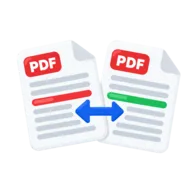
Compare two PDFs
Compare two PDF files page by page. See both side by side with every changed pixel highlighted and a percent of change. The file never leaves your device.
How to compare two PDF files
Drop two PDFs above. The first is Document A and the second is Document B. Pick a page number and the tool renders that page from both files with PDF.js, lines them up and shows three images side by side: A, B and a highlighted difference. A figure above the images gives the share of pixels that changed. Step through the pages to find every edit.
What the comparison checks
This is a visual diff. It compares how each page looks, pixel by pixel, not the text stored in the file. That makes it good at catching changed numbers in a contract, a moved logo, a new signature, a different stamp or a swapped image, including changes inside scans that have no text at all. It also means a paragraph that reflows by one line shows as a large changed area, even when only one word differs.
Adjust the sensitivity
The difference sensitivity slider runs from 4 to 80 and starts at 24. Lower values flag smaller colour changes, such as a slightly different shade of grey. Higher values ignore faint rendering noise and only flag clear changes. If two exports of the same document show scattered specks, raise the value until only real edits remain.
When the page counts differ
The tool shows how many pages each file has. If one PDF is shorter, picking a page past its end compares against its last page. Insertions shift every later page, so compare section by section, or extract the matching pages first.
Your file stays on this device
Convertur reads the file in this browser tab and builds the result there. The file is never sent to a server. Larger browser engines load only when this tool needs them.
Before you start
Input: PDF. Output: page differences. The settings appear before anything runs, so you can check them first. Your original file is never changed.
If layout, notes, forms, signatures or fonts matter, check the new PDF page by page. A file that opens is not the same as a file that looks right.
Keep the original until you have opened and checked the result. The work happens in this browser tab, so the size you can handle depends on your device's memory, your browser and the file itself.
How to compare two PDFs
- Add the two PDFs you want to compare.
- Choose a page number and check the highlighted difference.
- Raise or lower the sensitivity if needed, then step through the pages.
Last updated · How we build and check tools · Report an error
 PDF to Text
 Diff Checker
 Extract PDF Pages